Display Your Artworks on a Frame TV
To maintain the illusion of physical framed art, displayed digital images must match the display's native resolution, utilize proper aspect ratios, and be imported using the correct platform-specific software interfaces. If you download a ready-to-use artwork on wall-art-frame, you're all set!
USB Storage Drive Optimization
A high-quality USB flash drive is essential for transferring custom digital assets to the internal memory of art-mode televisions.
- File System Formats: The USB drive must be formatted as FAT32 or NTFS (for most smart platforms) or exFAT (supported by modern Tizen and webOS systems). Drive partitions configured under unsupported Unix or macOS formats (such as APFS or HFS+) will result in mounting errors or silent file parsing omissions.
- Hardware Considerations: For Android TV, Google TV, or VIDAA-powered displays (such as Hisense and TCL), high-speed metal-encased USB 3.1 or USB 3.2 Gen 1 drives (such as the Samsung BAR Plus or SanDisk Extreme Go) are recommended. These systems often format the drive as integrated system storage. Metal chassis designs dissipate heat far better than plastic models, preventing thermal throttling and write-speed degradation during large file transfers.
- Filename Standardization: Filenames must be restricted to alphanumeric ASCII characters (A-Z, 0-9) and basic underscores or hyphens. Avoid non-standard symbols, spaces, accents, or regional diacritics. Many smart TV OS file parsers will silently skip directories or individual files containing characters they cannot map.
Platform-Specific Upload Procedures
Samsung The Frame (Tizen OS)
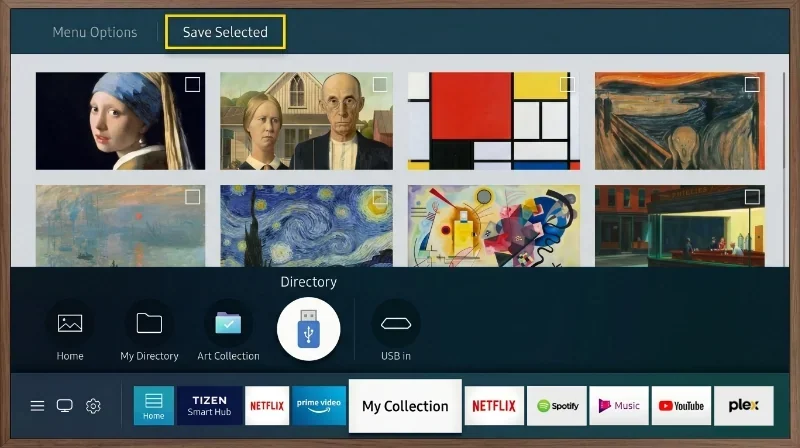
Samsung displays support importing images directly into internal flash memory via the "My Collection" portal.
- System Activation: Press the Power button on the One Remote to turn on the display. By default, the television activates in standard TV Mode. Press the Power button once more to transition the display into Art Mode.
- My Collection Navigation: Press the Down directional key on the D-pad to display the lower menu bar. Scroll horizontally past the "Samsung Art Store" options until reaching My Collection, and press Select.
- USB Input: Plug the formatted USB drive containing the artwork into one of the USB ports on the One Connect Box. Within the "My Collection" interface, navigate to the newly displayed USB Device icon and select it.
- File Selection: The screen will display thumbnails of all compatible image files found on the root directory of the drive. Highlight the target image and press the Select key to view it full screen.
- Local Storage Transfer: To store the files on the TV's internal memory, press the Up directional key while viewing the thumbnails and select Save. Check the boxes next to the desired images, navigate to Save Selected at the top of the interface, and press Select to initiate the transfer. Once saved, the USB drive can be safely disconnected.
LG Gallery Series and G-Series (webOS 25+)
Modern LG screens running webOS 25 or later integrate ambient features under the LG Gallery+ platform, combining the legacy "Always Ready" function with the art gallery database.
- Launching the App: Press the Home button on the Magic Remote, scroll through the application carousel, and select LG Gallery+.
- Account Synchronization: Select the My Page user icon in the upper-right corner of the interface, click Go to LG Account, and sign in. An active LG account is mandatory to utilize custom image sync features.
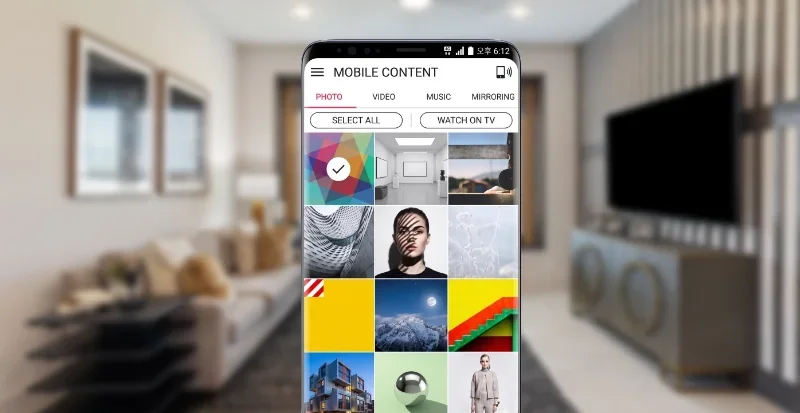
- ThinQ App Mobile Connection: Open the LG ThinQ smart-home application on a mobile device connected to the same Wi-Fi network. Select the registered LG TV device, navigate to the Always Ready section, and choose Use My Photos.
- Image Upload: Select the photos from the mobile device's camera roll or linked Google Photos account and tap the transfer button. Once completed, tap Activate Always Ready on the app.
- Always Ready Automation Lock: While the custom slideshow is playing on the screen, press the wheel key on the Magic Remote to reveal the on-screen display menu, click Always Ready Options, and select Set to Always Ready. This locks the custom photo compilation as the default screen state whenever the display enters low-power standby mode.
Hisense CanvasTV (VIDAA OS / Google TV)
Hisense displays include approximately 17GB to 19GB of high-speed internal flash storage dedicated to storing custom photo collections.
- Art Mode Access: Power down the display to trigger Art Mode automatically, or open the Art Mode application from the standard home screen launcher.
- Menu Activation: Press the OK button on the remote while Art Mode is active to bring up the overlay options, and select Photo Collections at the top.
- Import Initialization: Scroll down to the My Photos category and select the plus sign (+) icon.
- Wireless Mobile Upload: Select the Mobile Device option. The television will display a unique QR code on-screen. Scan the code with a smartphone camera to open a web browser portal hosted locally on the TV's network. Choose files directly from the phone (files must be between 100KB and 20MB in size) to upload them over the Wi-Fi network.
- Direct USB Import: Alternatively, select USB Device from the import prompt with a loaded flash drive connected. Select the desired files and copy them to the local partition. Once imported, select the images and set the custom rotation intervals via the settings menu.
TCL NXTFRAME (Google TV / T-Exhibition)
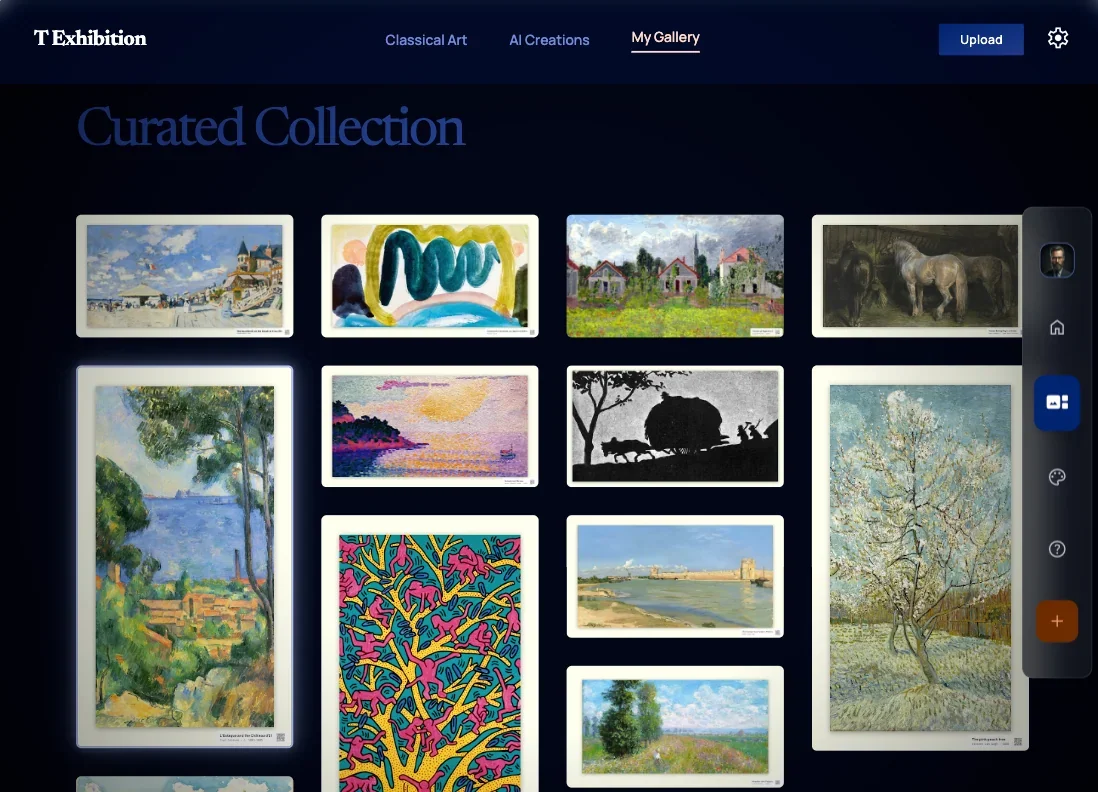
The TCL NXTFRAME series handles curated digital exhibits through a proprietary app called T-Exhibition.
- T-Exhibition Launch: Press the Home button on the TCL remote, navigate to the Apps tab, select T-Exhibition, and open the interface.
- App-Based Mobile Sync: Open the TCL Home app on a smartphone, tap the plus sign (+) in the upper right corner, and select Scan. On the television, go to the photos section under the local memory menu, click the plus sign (+) at the top of the screen, and scan the displayed QR code with the phone to link the devices and upload images.
- USB Drive Loop Bypass: For direct USB playback, insert a FAT32 or NTFS formatted drive into the rear USB port. Select Inputs on the TV, open Media Player, choose the USB drive, and select the image files to play on a loop.
Developer Mode Lock (Essential Trick): By default, Android/Google TV system screensavers (Ambient Mode) may override the T-Exhibition display after a set period of inactivity, shutting off the art screen. To keep the art active indefinitely:
- Navigate to Settings > System > About.
- Scroll to the Android TV OS Build entry and click it repeatedly seven times until a message reads "You are now a developer."
- Return to the System menu, open Developer Options, and toggle the Stay Awake setting to On.
- Ensure that standard Google Ambient Mode is disabled in the system settings. The TV will now remain locked within the T-Exhibition or TCL screensaver app without timing out.
Digital Art Formatting Standards
To ensure that uploaded artwork displays with maximum realism and avoids rendering artifacts, all files should be prepared on a computer prior to transfer according to the following hardware-optimized standards:
| Parameter | Recommended Specification | Architectural Rationale |
|---|---|---|
| Aspect Ratio | 16:9 Wide Aspect Format. | Matches the physical display panel dimensions, eliminating unnatural black letterboxing or pillarboxing borders. |
| Native Resolution | 3840 × 2160 pixels (Ultra HD / 4K). | Matches the pixel density of UHD displays, ensuring sharp, high-definition reproduction of fine brushstrokes and details. |
| Color Space Profiles | RGB or DCI-P3. | Standardizes color mapping between computer editing software and the TV's QLED or OLED display panel. |
| File Format | Progressive Baseline JPEG or PNG. | Maximizes file parsing compatibility across Tizen, webOS, Google TV, and VIDAA OS platforms. |
| File Size Constraints | Between 100 KB and 20 MB per file. | Prevents system memory overflows or slow image loading times. |
| DPI / PPI Target | 72 DPI minimum (Web Standard). | Optimizes file rendering for high-resolution displays. |