Free Samsung Frame TV Art: The Ultimate 4K Download Guide
The Samsung Frame TV turns a dormant black screen into a rotating gallery wall. The hardware delivers on that promise — but the curated content behind Samsung's own Art Store sits behind a recurring paywall, with no way to keep the pieces you grew to love once you stop paying. This guide shows you how to source museum-grade artwork at the correct specifications, prepare it properly, and load it onto your display — at no cost, and with the option to own your favorites outright.
The Rising Cost of Art: Why Samsung Art Store Alternatives Matter
Samsung's Art Store runs on a subscription priced at $4.99 per month, billed indefinitely. Over a typical five-to-seven-year ownership window, that's roughly $300–$420 in cumulative spend for content access alone — on top of the premium already paid for the panel itself.
The real friction isn't the monthly fee in isolation; it's that the fee buys access, never ownership. Cancel the plan and the curated pieces you arranged across your wall simply vanish from rotation. For a product marketed on the permanence and elegance of displayed art, having your gallery disappear the moment you stop paying runs against the grain.
The good news: the Frame TV will display any image you load onto it, regardless of source. Art Mode is format-agnostic — it doesn't verify whether an image came from the paid store or from a free download. That opens the entire world of public-domain and independently curated art to you, provided the files meet the display's technical requirements. And as you'll see at the end of this guide, the right catalog lets you mix a generous free tier with the option to permanently own the works you care most about, rather than renting them forever.
What Wall Art Frame offers
Our site lets you download artworks in HD for free — no clutter, and already cropped to fit. Signing up increases your download quota.
👨🏼🎨 But above all, we've introduced museum labels, which appear on the artwork and let you see at a glance (just like at the museum) the artist's name, the title of the work and its date.

That's Wall Art Frame's great strength. We let our users know which artworks are showing on their TV.
Technical Specifications for Perfect Frame TV Display
Black borders, soft edges, and visible compression artifacts are the most common complaints among Frame TV owners who source their own art. Every one of these issues traces back to a single root cause: files that don't match the panel's native specifications. The Frame scales any non-conforming image to fit, and that scaling is where quality degrades.
Match these specifications precisely before uploading any image.
| Specification | Required Value | Why It Matters |
|---|---|---|
| Resolution | 3840 × 2160 px | Native 4K UHD resolution. Lower resolutions are upscaled by the panel, introducing softness. Higher resolutions are downsampled, wasting detail and storage. |
| Aspect Ratio | 16:9 | The exact ratio of the panel. Any deviation forces letterboxing (horizontal black bars) or pillarboxing (vertical black bars). |
| File Format — JPG | JPEG, quality 90–100 | Best for photographs, paintings, and images with smooth gradients. Smaller file size, faster upload, negligible quality loss at high quality settings. |
| Color Profile | sRGB | The Frame renders in sRGB. Images embedded with Adobe RGB or ProPhoto profiles will display with muted or shifted colors. |
| Max File Size | Stay under ~25 MB per image | Larger files risk upload failures and slow Art Mode transitions, particularly over the SmartThings mobile pathway. |
The practical rule: a 16:9 photograph or painting should ship as a high-quality JPG, while graphic art with sharp edges or text should ship as PNG-24. If a source image isn't natively 16:9, crop it to 3840 × 2160 deliberately — choosing your own composition — rather than letting the TV crop or stretch it for you. Our free photo cropping tool does exactly this, outputting Frame-ready files at the correct dimensions in a couple of clicks.
How to Upload Art to Your Samsung Frame TV
There are two reliable pathways for loading custom art: the SmartThings mobile app and a direct USB transfer. Each has distinct constraints worth understanding before you begin. For a fuller walkthrough, see our dedicated guide on displaying artworks on a TV.
The SmartThings Photo Permissions Workaround
The SmartThings app is the wireless route, but most users hit a wall immediately: the app appears to offer no way to send a personal image to Art Mode. The function exists — it's gated behind a permissions setting that's easy to miss.
- Install SmartThings on your phone and confirm the Frame TV is registered as a device on the same network.
- Open the Frame TV device tile, then enter Art Mode controls within the app.
- Locate the add image / "+" function. On first use it will request access to your phone's photo library. Grant full photo-library access, not "selected photos only." The selected-photos permission frequently blocks the upload handshake and is the single most common reason the feature appears broken.
- If the option still doesn't surface, go to your phone's system settings, find SmartThings under app permissions, and manually toggle Photos to full access. Restart the app.
- Select your pre-cropped 3840 × 2160 image and upload. It will appear in your personal Art Mode collection within seconds. This permissions toggle is the entire workaround. Once full library access is granted, wireless uploads behave reliably.
USB Batch Upload Limits
For loading many images at once, USB is faster and avoids the app entirely.
- Format a USB drive as FAT32 or exFAT and create a folder of your prepared images at the correct specifications.
- Insert the drive into the One Connect Box, not directly into the TV chassis (the input ports live on the breakout box).
- Open Art Mode, select Import from USB, and choose your images. Be aware of the constraints. The Frame copies images into its internal storage, which is finite — plan for a practical ceiling in the range of a few hundred images depending on file sizes, and prune older pieces as you add new ones. Batch imports can also be slow; large folders may take several minutes to transfer. Once imported, the drive can be removed; the images persist in internal storage and display from there, not streamed from the drive.
For most owners, the optimal workflow is a USB batch load for the core collection, supplemented by occasional SmartThings uploads for one-off additions.
Top Free Public Domain Resources for Art-Mode TVs
Before downloading from any independent catalog (even ours 😆), it's worth knowing that several of the world's major institutions have released hundreds of thousands of high-resolution artworks into the public domain under Creative Commons Zero (CC0). CC0 means the work is free of copyright restrictions and usable for any purpose without permission, attribution, or fee. These are legitimate, gallery-grade sources.
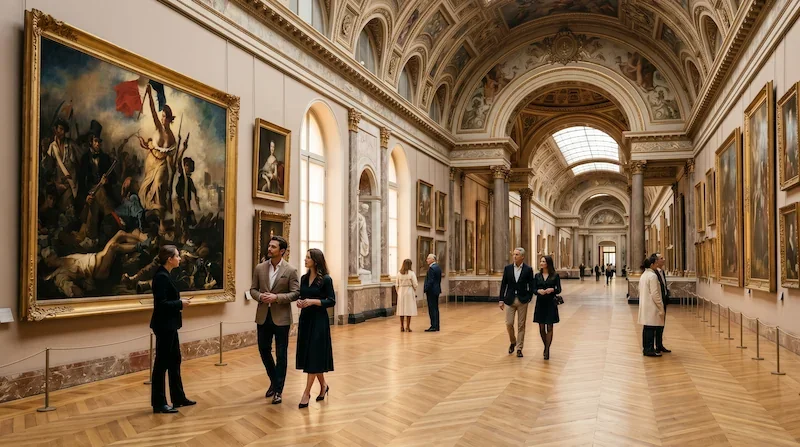
The Metropolitan Museum of Art maintains an Open Access program covering more than 490,000 images of public-domain works, delivered through a free RESTful API that returns high-resolution JPEG files. Look for the "OA" icon on object pages, or query the collection programmatically. This is among the deepest and best-documented free art repositories available.
The National Gallery of Art (Washington, D.C.) offers open-access image downloads directly from its object pages, with tens of thousands of public-domain works available at up to 4000 pixels wide — comfortably above the 3840-pixel width the Frame requires. Its accompanying open-data program publishes collection metadata under CC0 for those who want to browse and filter at scale.
The Smithsonian Institution runs one of the largest open-access initiatives of any cultural body, with millions of CC0 2D and 3D digital items spanning its museums, research centers, and archives. Access is available both through standard collection browsing and via a free API key registered through the Smithsonian's public developer platform.
The trade-off with these sources is effort. Public-domain images arrive at the institution's native dimensions and aspect ratios — rarely a clean 16:9 — so each piece you choose must be individually downloaded, cropped to 3840 × 2160, color-checked for sRGB, and exported in the correct format before it's Frame-ready. The art is exceptional; the preparation is manual.
Discover the Wall Art Frame Curated Collection
Wall Art Frame takes world-class public-domain art and removes the preparation work entirely. Every image in our gallery is delivered perfectly tailored for TV art modes (Samsung The Frame, LG Gallery Mode, or any equivalent screen). Our Studio lets you customize crops, digital mats, and passe-partout so each piece complements your room and bezel perfectly. What sets us apart isn't just curation — it's flexibility. Instead of forcing you into a single recurring subscription, you choose how you access your art.
What’s included in the Free tier
Our Free tier is available forever and lets you test the service without commitment:
- Full gallery access: browse and search the entire catalog with no paywall.
- 1 free artwork unlocked for life: download in Full HD (1920×1080) with custom framing, passe-partout, and museum label included — re-downloadable whenever you want.
- Collections & selections: organize and curate your favorites to plan your display.
- Personal photo cropper: format your own photos directly in your browser.
Choose how you expand your collection
When you want to go further, pick the model that best fits your lifestyle:
- Credits (Permanent Collection) — Buy credits as you need them to unlock artworks permanently in full UHD (4K). Unlocked files stay in your personal vault for life with unlimited re-downloads, even without an active plan. Pay once, keep them forever.
- The Patron Access Pass — An optional subscription (6 or 12 months) for unlimited exploration. Enjoy unlimited UHD (4K) downloads, full Studio features, and a completely ad-free experience while your Pass is active. The golden rule: use a Pass for continuous discovery and rotating seasonal galleries, and use credits to secure your favorite masterpieces forever. Compare all options on our pricing page, or start exploring now: browse the gallery →
Setting up a new Frame? You may also find these guides useful: comparing Frame TV models, installing the TV flush against a wall, and our FAQ.